
Connect Slack
“Why is this so hard?”
Slack only lets an outside app into your messages through an app you create and authorize yourself, so this is the official way to connect. You only have to do this once, and takes just a moment.
Create your Slack app#
Go to api.slack.com/apps and click Create New App → From scratch. Give it any name (for example, Secretary) and pick the workspace you want to connect.
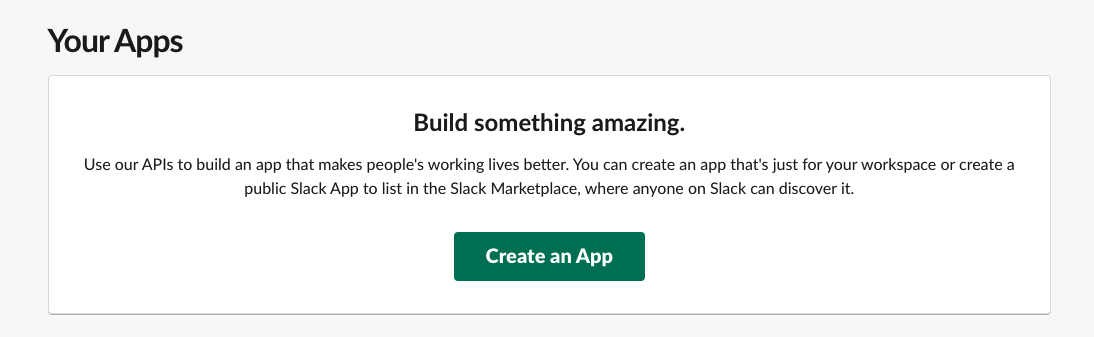
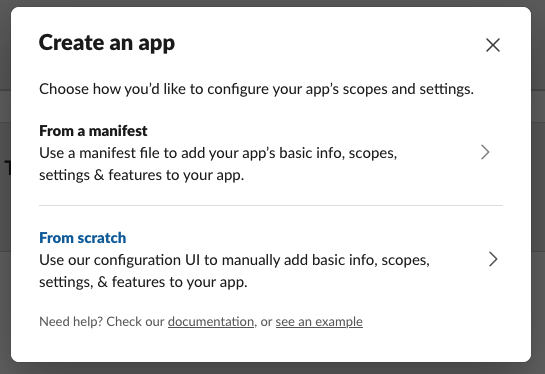
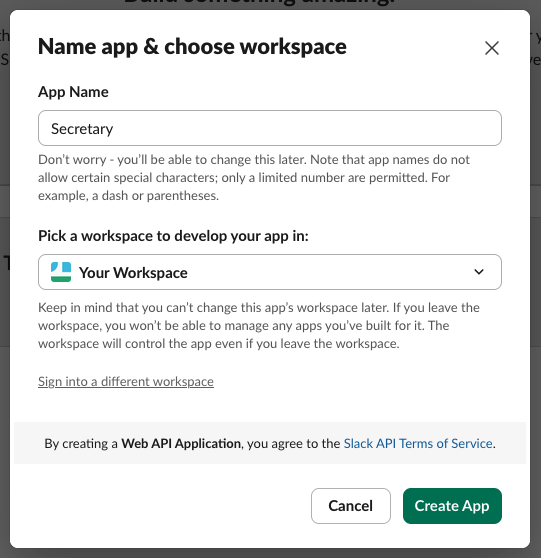
Configure OAuth & Permissions#
In your app's left sidebar, open OAuth & Permissions. Two things go here.
First, under Redirect URLs, click Add New Redirect URL and paste this exact address, then save.
https://verycoolproject.com/slack/oauth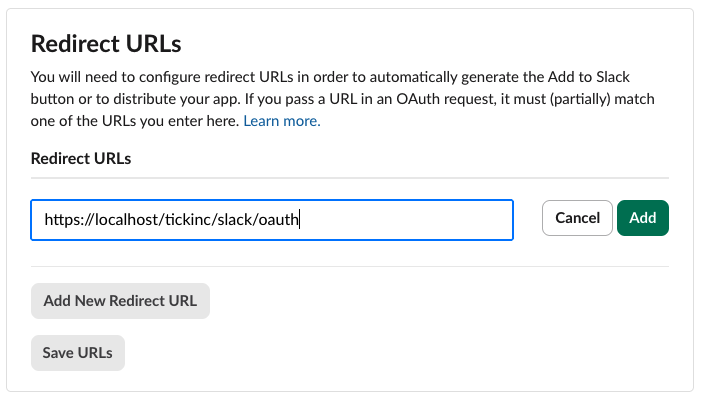
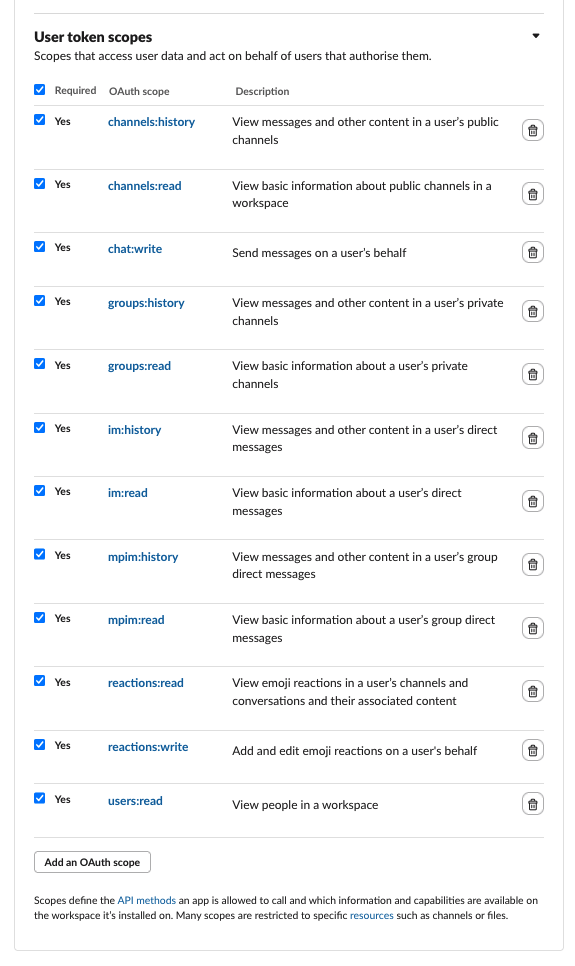
Second, scroll down to Scopes → User Token Scopes (not Bot Token Scopes) and add the twelve below. These let Secretary read your channels and DMs, send messages as you, and sync reactions.
channels:historychannels:readchat:writegroups:historygroups:readim:historyim:readmpim:historympim:readreactions:readreactions:writeusers:read
Add your credentials to Secretary#
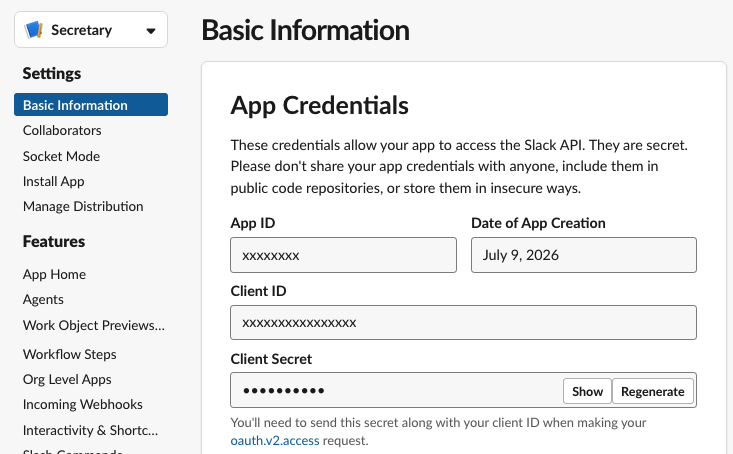
In your Slack app, open Basic Information → App Credentials and copy the Client ID and Client Secret.
In Secretary, go to Settings → Advanced → Slack app credentials, paste both values, and click Save. They're encrypted on your device and are only used to talk to Slack.
Connect Slack#
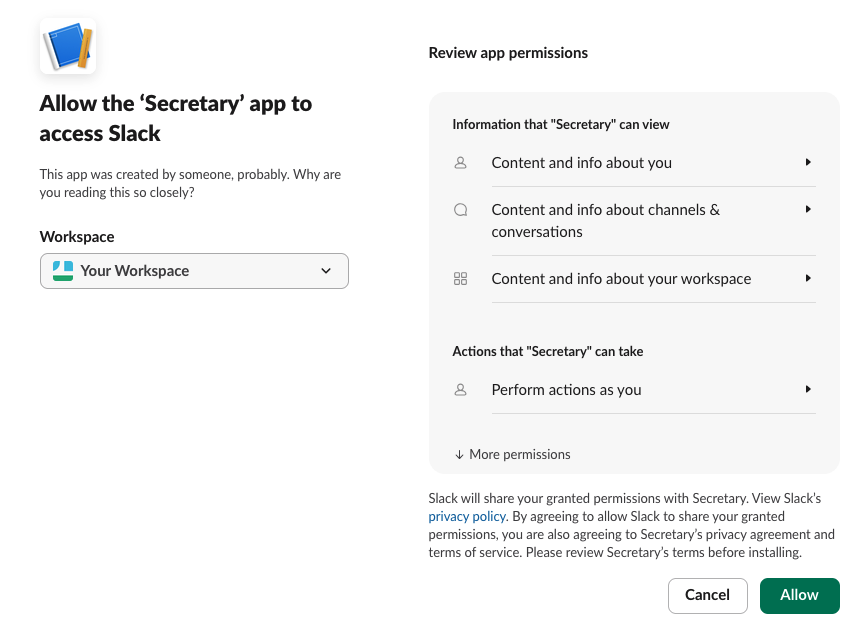
Go to Settings → Connections → Slack and click Connect Slack. Your browser opens Slack's consent page — review the access and click Allow.
Finish the connection#
After you approve, your browser sends you back and Secretary opens automatically to finish — you can close the browser tab. That's it.
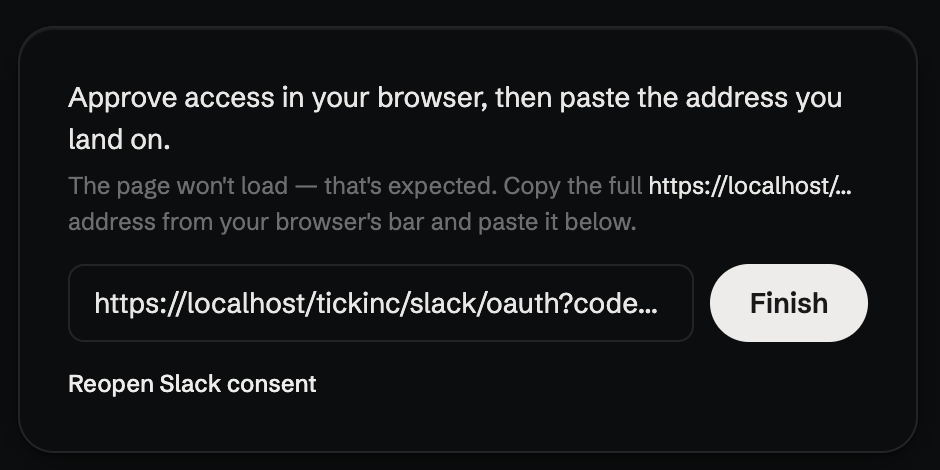
If Secretary doesn't open: some browsers ask before handing a link to an app, and it's easy to miss. The page will show an “Open Secretary” button — click it. If that still doesn't do it, copy the full address from your browser's address bar, return to Secretary, paste it into the “Paste the redirected address…” field, and click Finish.
Either way, Secretary exchanges it for your access token, signs you in as yourself, and starts syncing. New messages, edits, and reactions sync on an interval (30 seconds by default, adjustable in Settings → Slack); older messages load as you scroll up in a conversation.
You're done! :D
Troubleshooting
“Redirect URL mismatch”
The redirect URL in your Slack app doesn't match. Open OAuth & Permissions and confirm you added exactlyhttps://verycoolproject.com/slack/oauth under Redirect URLs — no trailing slash, no http://, and be sure you clicked Save.
I connected before — do I need to change anything?
Yes, if you set Slack up on an older version. The redirect URL changed to https://verycoolproject.com/slack/oauth. Open your Slack app's OAuth & Permissions, add that exact URL under Redirect URLs (you can remove the old localhost one), click Save, then reconnect in Settings → Connections → Slack. Your messages already synced stay put. Until you do this, Slack will reject the sign-in with a “Redirect URL mismatch”.
“A requested scope was rejected”
One or more scopes are missing. Go back to OAuth & Permissions → User Token Scopes and make sure all twelve scopes above are listed there (they must be User Token Scopes, not Bot Token Scopes). Then try connecting again.
Nothing seems to sync after connecting
Open Settings → Connections → Slack and click Refresh. If it still looks stuck, Disconnect and reconnect. Very large workspaces can take a little while on the first sync; older messages also load lazily as you scroll up in a conversation.